 GGX Help
Settings
Change how GGX looks, how counterparties reach you, and how your profile appears.
Select SETTINGS in the menu. On a large screen, the sections are listed on the left and General opens first. On a smaller screen, select a section to open it.
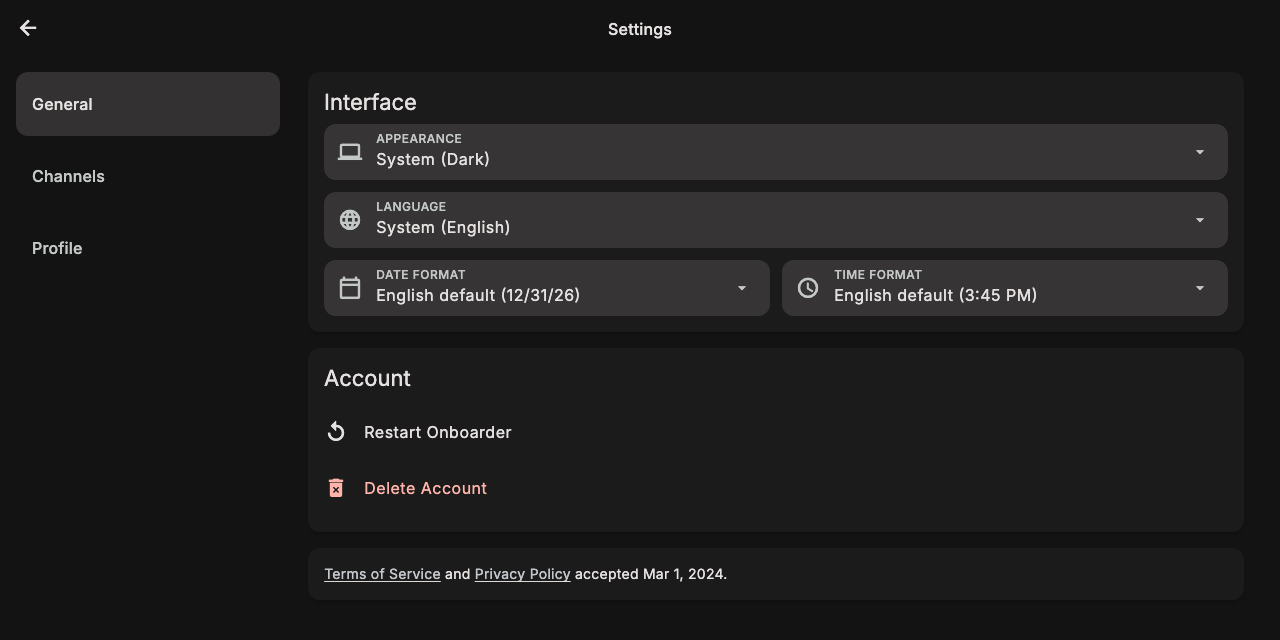
General
- APPEARANCE is System, which follows your device, or Light, or Dark.
- LANGUAGE is System, English, Spanish, or Portuguese.
- DATE FORMAT writes dates in your language's usual order, or as month/day/year, day/month/year, or year-month-day.
- TIME FORMAT shows times on your language's usual clock, or on a 12-hour or 24-hour clock.
- If your account is set up for brokering, a Trading card holds the Broker mode switch.
- Restart Onboarder runs the first-time setup again.
- Delete Account permanently deletes your GGX account and its data, including your contacts, chats, and subscription. It cannot be undone. GGX asks you to confirm twice, the second time by typing DELETE.
The bottom of the page shows when you accepted the Terms of Service and Privacy Policy.
Channels
Channels are the ways counterparties reach you through GGX.
- GGX Phone: select CLAIM to get a US phone number.
- GGX Email: select GET ADDRESS to get a GGX email address.
- WhatsApp on your GGX phone, and your Trillian ID: select REQUEST. The channel's status then shows Requested, Waitlisted, In progress, Set up, or Not available.
Profile
- AVATAR IMAGE: select CHANGE PHOTO or REMOVE PHOTO.
- NAME: the name your counterparties see. Changes save automatically.