 GGX Help
Contacts
Add, sync, and import the counterparties you trade with, and message them.
Your contacts
Select CONTACTS in the menu. On a large screen, your contacts open over the page you were on. Select a contact to see their details.
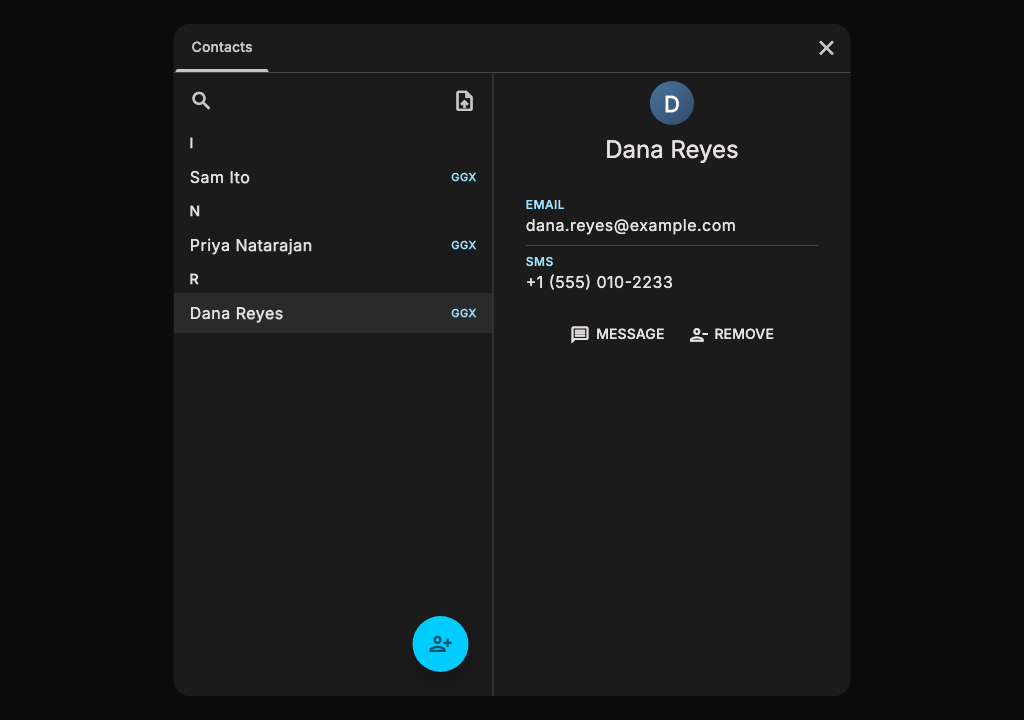
- Search finds a contact by name.
- A contact's details list how to reach them, such as an email address or SMS number.
- MESSAGE opens a conversation with the contact.
- EDIT changes the details of a contact who does not use GGX.
- REMOVE removes the contact.
Contacts you are not yet connected with are listed under Add to GGX. Select ADD on one to connect with them.
Add a contact
- Select the + button below the list.
- Enter a first and last name.
- Choose a CONTACT METHOD: SMS, EMAIL, TRILLIAN, or WHATSAPP. Then enter their number, email address, or ID.
- Select SAVE.
Sync contacts from your phone
- Get the GGX app for iPhone and iPad or Android.
- Open CONTACTS in the app. You see all of your phone's contacts, and can select the ones you want to communicate with on GGX.
Data privacy note
Your phone decides which contacts GGX can see. On an iPhone, you can share just the contacts you choose. To find which of them use GGX, the app sends GGX a scrambled code for each phone number and email address, never the number or address itself. GGX matches the codes against its members' and keeps them to suggest connections. Only the contacts you select are saved to your GGX account, so you can message them.
Import contacts from a CSV file
- Select the upload icon at the top of the list.
- Choose a CSV file. A vCard file works too.
- If GGX cannot tell which columns hold names and contact details, match them to the right fields and continue.
- Review the preview. To read phone numbers correctly, GGX may ask which country you are in. When the file repeats a contact, choose which entries to keep. Then select the import button to add them.
Contacts across GGX
Your contacts are the people you can start a conversation with, and the traders you can send an order to when you choose Custom visibility. See Create an order.